Your Assistant, Right in Your Notch
Click the notch to chat, hold two keys to talk, and get back to work. Rings AI for Mac keeps your personal assistant one gesture away.
macOS 14 or later, Apple silicon or Intel · Updates itself
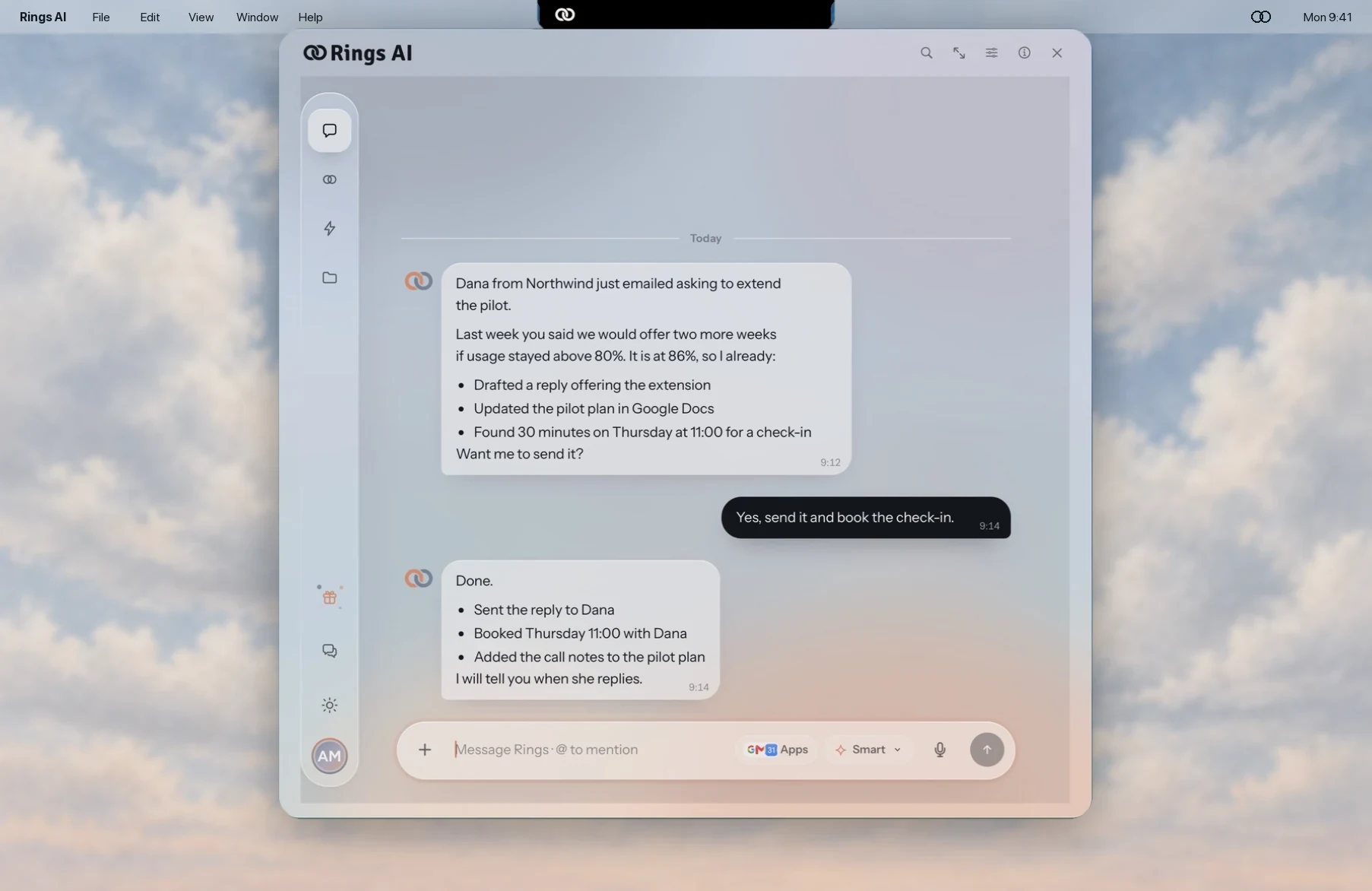
Open It from the Notch
Rings sits beside your camera. Click it, or press fn Space from any app, and your chat opens right where you left it. Compact for a quick question, Large for files and apps, Full when you settle in.
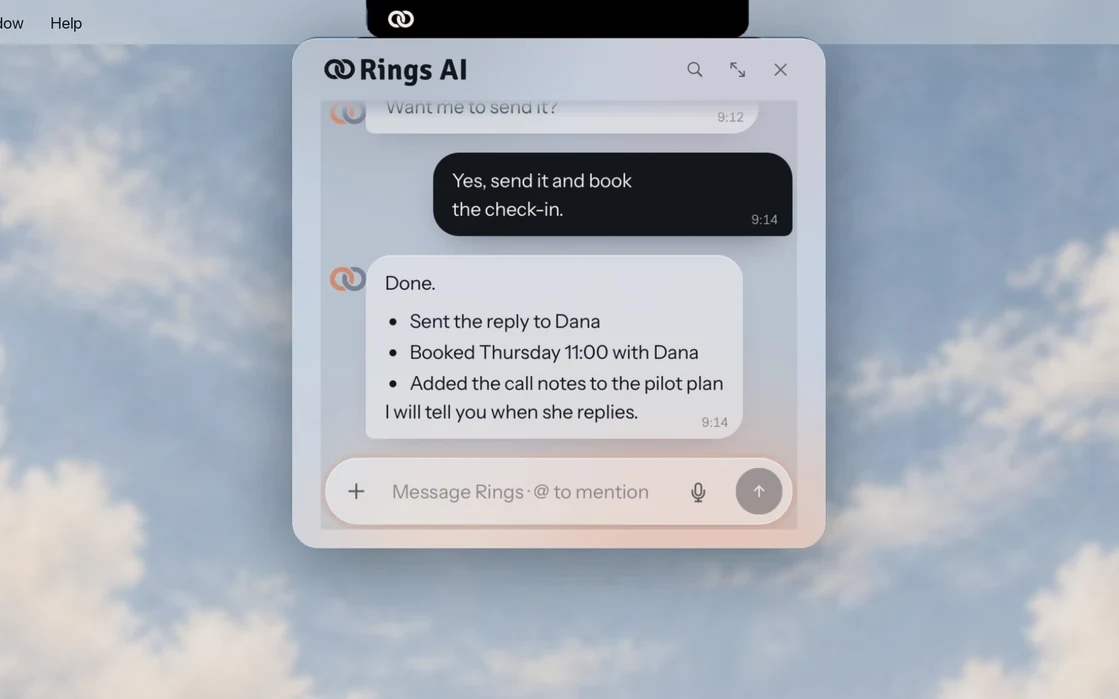
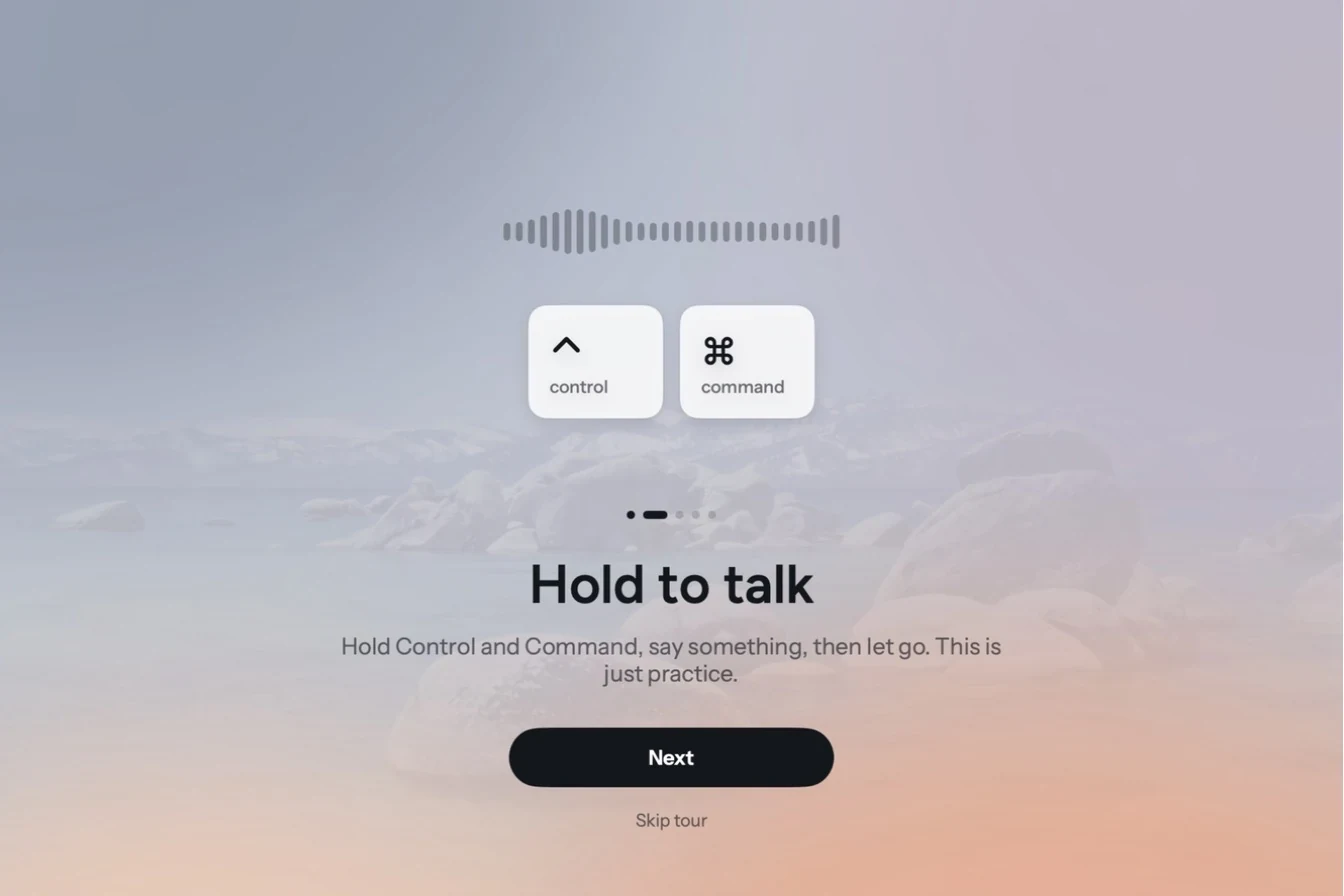
Hold Two Keys to Talk
Hold Control and Command, say what you need, and let go. Your voice message is on its way before you lose the thought.
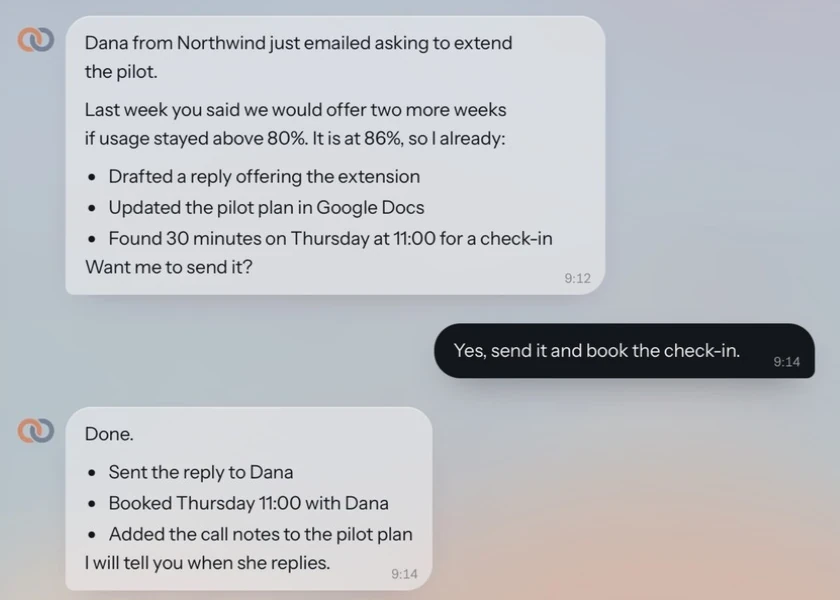
It Works Ahead of You
Rings remembers what you decided, prepares the next step, and asks before it acts. One yes, and the reply is sent, the meeting booked and the plan updated.
Never Miss a Reply
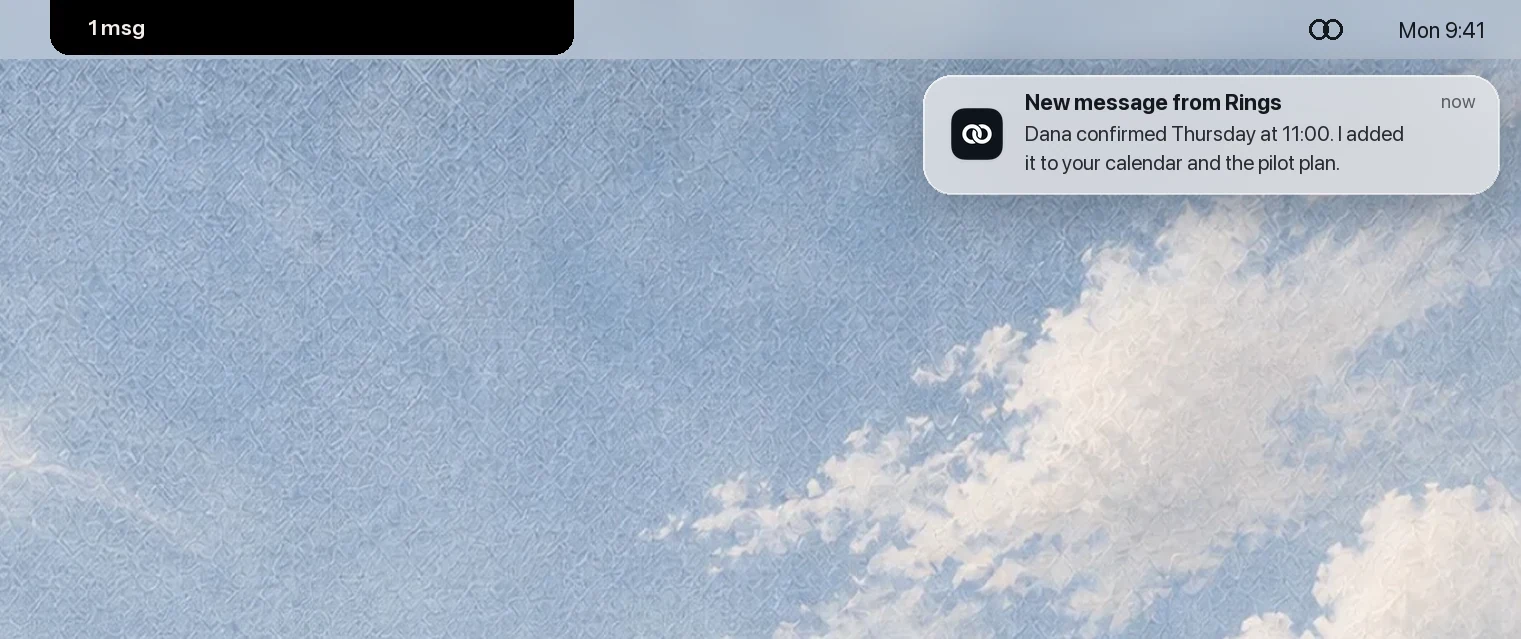
When Rings finishes, the notch shows it and a notification brings you straight back, even after hours of quiet.
Ready in a Minute.
- 01
Download the App
Download Rings AI for Mac. It is signed and notarized by Apple.
- 02
Drag It to Applications
Open the download and drag Rings AI into your Applications folder.
- 03
Open It and Sign In
A short tour shows you around. Then sign in with your Rings AI account.
A Few Good Questions.
What do I need to run it?
A Mac with macOS 14 or later. The app runs natively on Apple silicon and Intel Macs.
Do I need a Rings AI account?
Yes. Sign in with the account you already use, or create one from the app. Your agent, chats and files are the same on the web and on your Mac.
How does the app keep my session safe?
Apple notarizes every release. Your sign-in stays in your Mac's Keychain, and the app keeps no web data on disk.
Is there a version for Windows?
Rings AI for Mac is available today. On any other computer, use Rings AI in your browser at app.getrings.ai.
Your Agent Is Waiting
on the Web, Too.
Download Rings AI for Mac, or create your agent in the browser and pick it up anywhere.